Guidance
Navigation Guidance
When using navigation guidance or route simulation, building a custom UI for guidance is not currently supported. You should use the UI provided by Global iNavi Navigation SDK. This page describes the UI components of each screen.
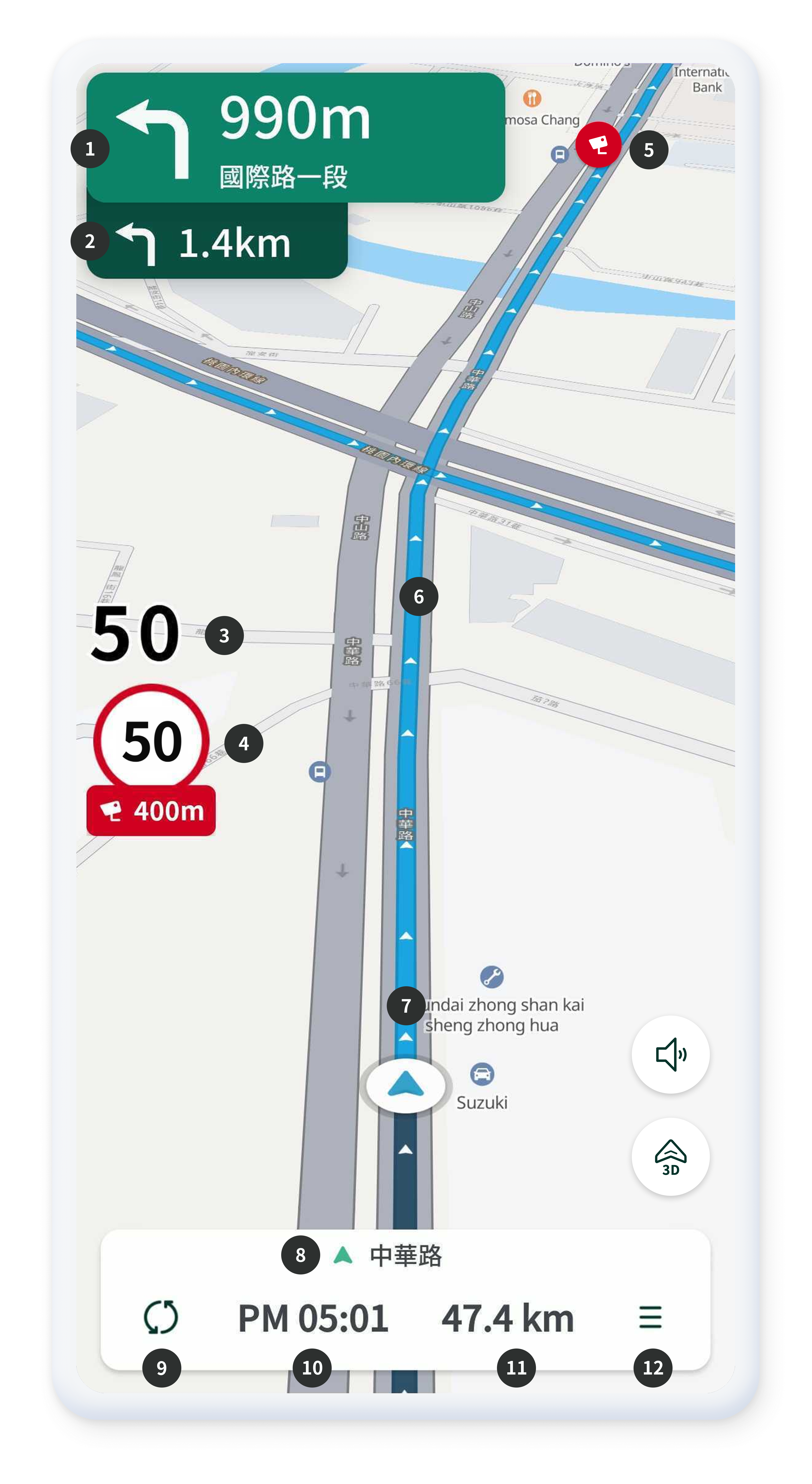
- Displays the next turn information and remaining distance.
- Displays the subsequent turn information and remaining distance.
- Shows the current driving speed.
- Displays the speed limit and the remaining distance to the speed camera.
- Indicates the location of the speed camera.
- Guidance line showing the driving route.
- Displays the current driving position.
- Shows the name of the current road.
- Updates the estimated arrival time and remaining distance.
- Displays the estimated arrival time.
- Displays the remaining distance to the destination.
- Button to access additional features.
Navigation Guidance – Additional features
This is the screen displayed when the ‘Check Additional Features’ button is clicked during navigation guidance
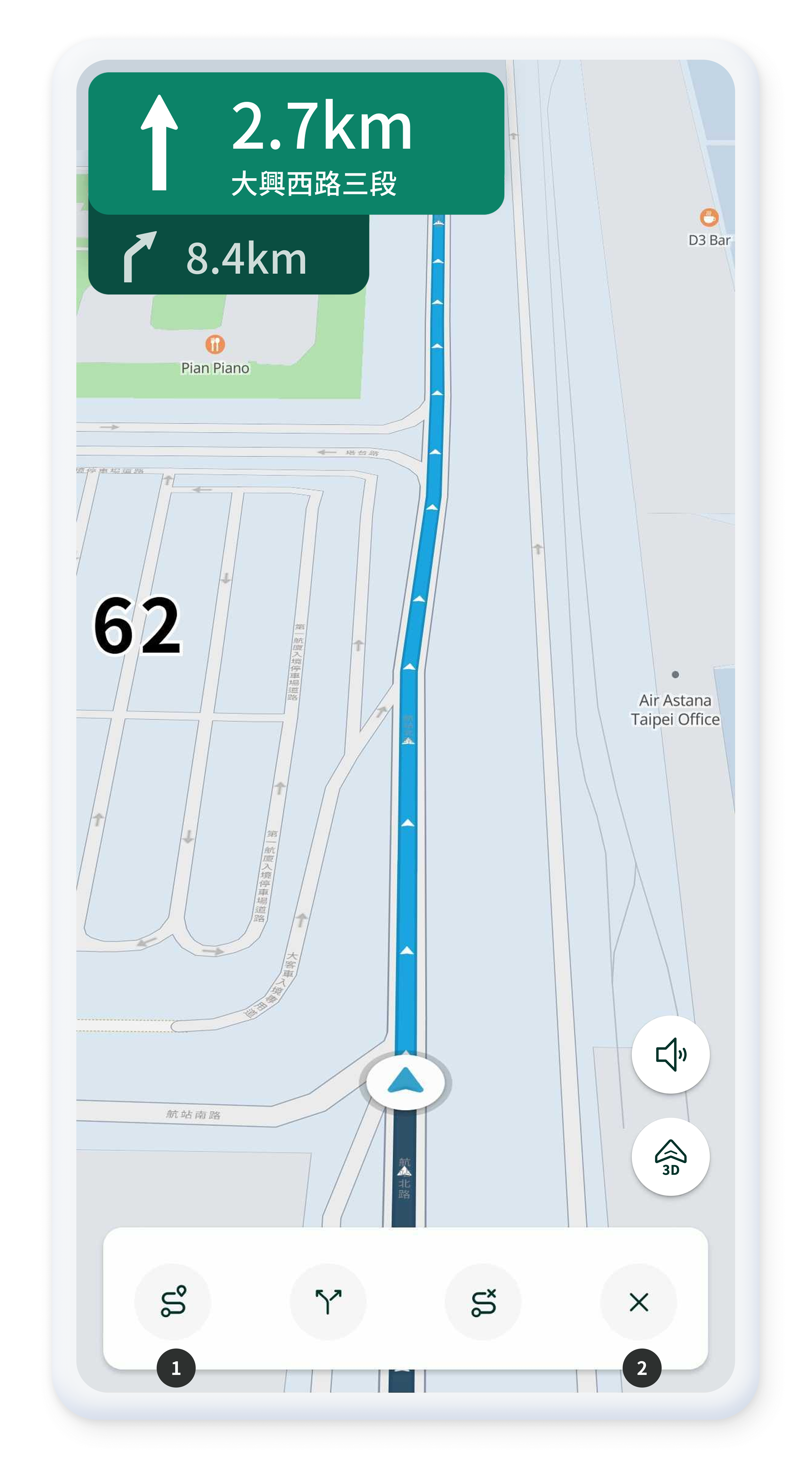
- When the Additional Features button is pressed, you can choose from the options: Full Route, Alternative Routes, or Cancel Route.
- Returns to the previous navigation screen.
Route Simulation
Before driving, you can preview the route using route simulation.
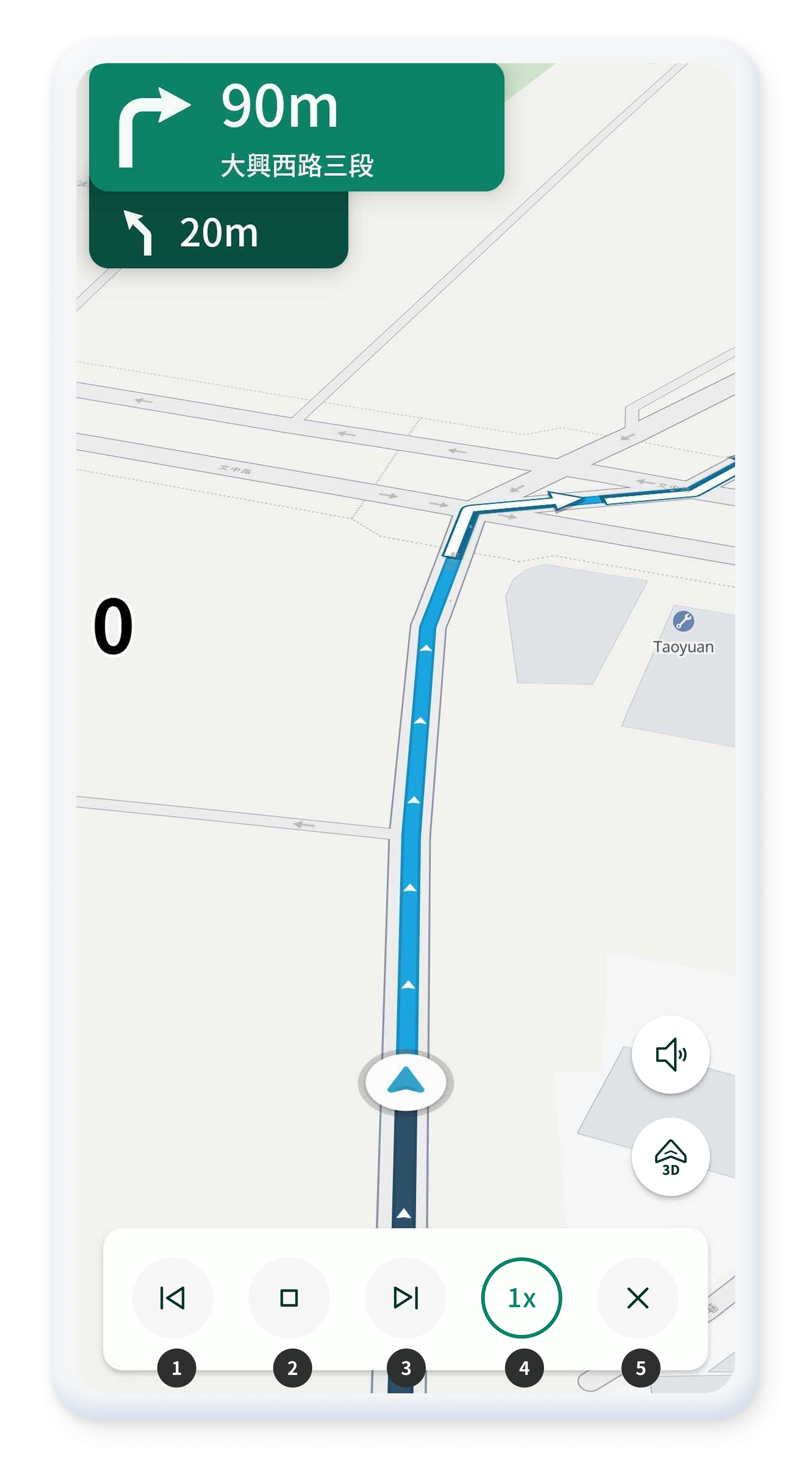
- Move to the previous turn location.
- Start/stop the route simulation.
- Move to the next turn location.
- Select the simulation speed (1x to 3x).
- Return to the previous screen.