Map
Adding a map
To integrate and display a map using the Global iNavi Navigation SDK, the following setup steps are required according to your platform.
add a FragmentContainerView for the map and an OrbisMapLayer to the Activity layout XML file
Info
When using the guidance feature, you must declare OrbisMapLayer below to ensure the guidance screen is displayed
<androidx.fragment.app.FragmentContainerView
    android:id="@+id/map_container"
    android:layout_width="match_parent"
    android:layout_height="match_parent"/>

<com.inavisys.navisdk.ui.map.OrbisMapLayer
    android:id="@+id/orbis_map_layer"
    android:layout_width="match_parent"
    android:layout_height="match_parent"/>
Add a UIView container for the map in your Storyboard or create it programmatically.
Info
When using the guidance feature, the SDK automatically displays the guidance screen overlay on the map view.
Using Storyboard:
// In your Storyboard, add a UIView and create an IBOutlet
@IBOutlet weak var mapContainer: UIView!
Programmatic approach:
let mapContainer = UIView()
mapContainer.translatesAutoresizingMaskIntoConstraints = false
view.addSubview(mapContainer)

NSLayoutConstraint.activate([
    mapContainer.topAnchor.constraint(equalTo: view.topAnchor),
    mapContainer.leadingAnchor.constraint(equalTo: view.leadingAnchor),
    mapContainer.trailingAnchor.constraint(equalTo: view.trailingAnchor),
    mapContainer.bottomAnchor.constraint(equalTo: view.bottomAnchor)
])
For details, refer to the Initialization Process.
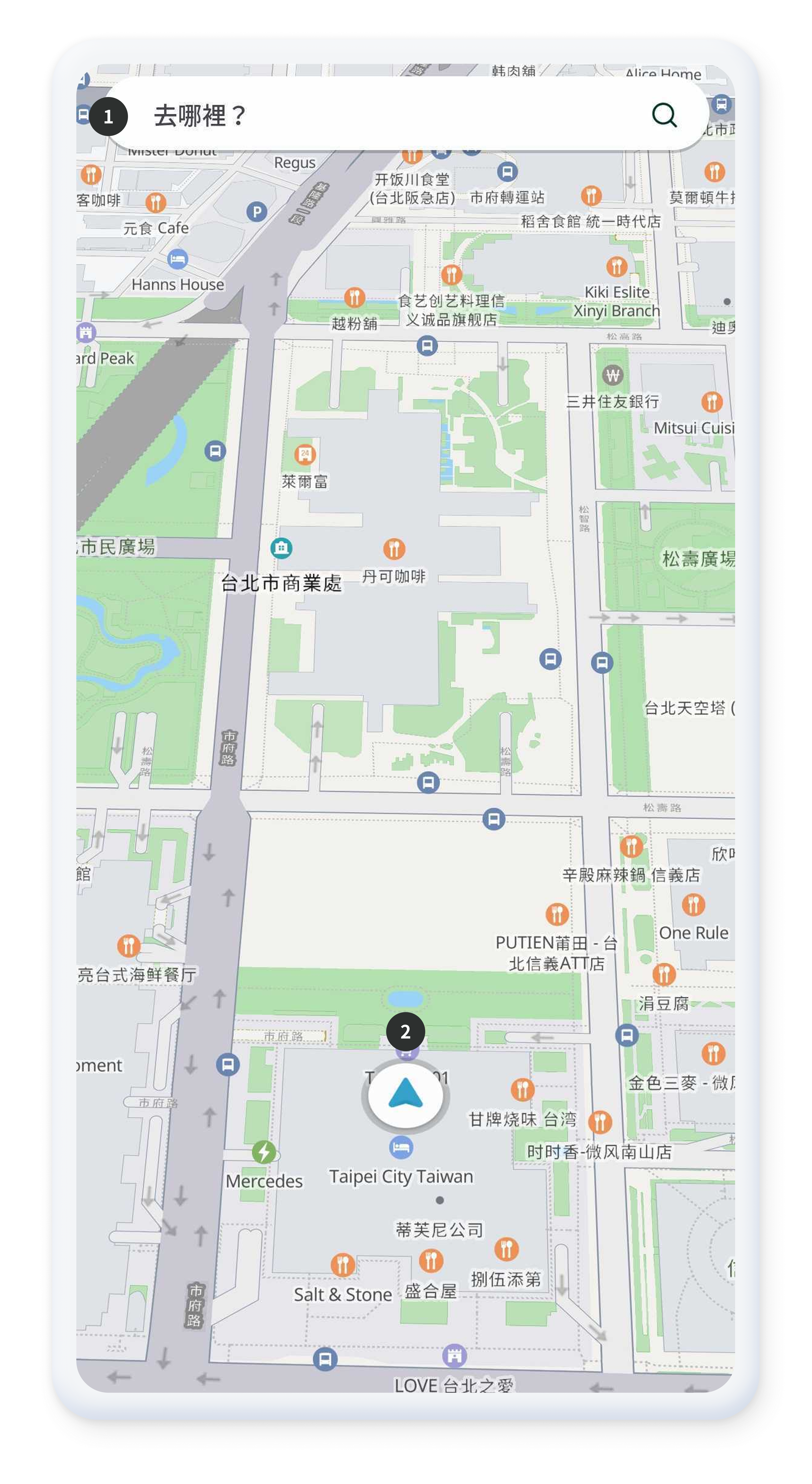
- Displays the search input screen on top of the map. See also SimpleSearchBar
- Icon indicating the current location.
Map Control
When the default map is clicked or dragged, the map control buttons are displayed.
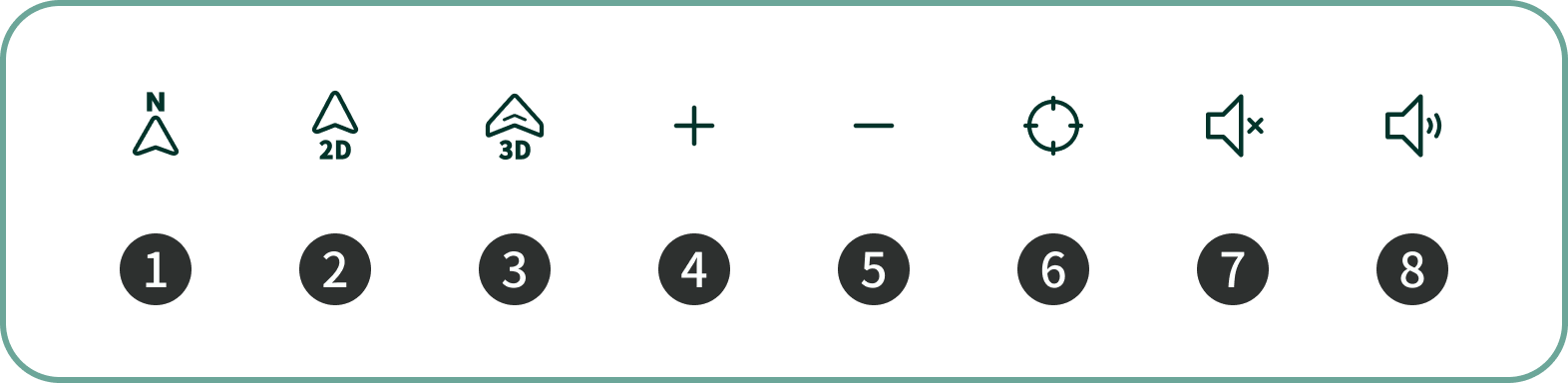
- Map view mode button that fixes the map to North-up during route guidance.
- Map view mode button that displays the map in 2D mode during route guidance.
- Map view mode button that displays the map in 3D mode during route guidance.
- Button to return to the current location after moving the map by dragging.
- Button to zoom in on the map.
- Button to zoom out of the map.
- Button to mute guidance voice during route navigation.
- Button to unmute guidance voice during route navigation.
Map Control Using the API
You can directly control the map using the APIs provided by
NaviController.
Declaring a Map EventListener
After initialization, you can set various map-related event listeners as needed.
-
Map Click Listner
(
setMapClickListener): Defines the behavior when the user clicks on the map. The latitude and longitude of the clicked point can be retrieved. See Also -
Changing Map Mode Listner
(
setMapModeListener): Detects when the map mode changes (e.g., normal mode, route guidance mode) so the UI can be changed accordingly For example, when route guidance starts, you can hide Search Screen or apply similar behaviors. See Also
// Set the listener to be called when the user clicks on the map
NaviController.setMapClickListener(object : OnMapClickListener {
    override fun onclick(lat: Double, lon: Double) {
        Log.d(TAG, "Map Clicked: $lat, $lon")
    }
})

// Set the listener to be called when the map mode changes
NaviController.setMapModeListener(object : OnOrbisMapModeListener {
    override fun onNormal() {
        // In normal mode: show the search bar
        binding.searchFragmentContainer.visibility = View.VISIBLE
    }

    override fun onGuide() {
        // In route guidance mode: hide the search bar
        binding.searchFragmentContainer.visibility = View.GONE
    }

    // ... Other Mode Callbacks
})
// Set the listener to be called when the user clicks on the map
InaviController.shared.setMapClickListener { coordinate in
    print("Map Clicked: \(coordinate.wgsLat), \(coordinate.wgsLon)")
}

// Set the listener to be called when the map mode changes
InaviController.shared.setMapModeListener { status in
    switch status {
    case .normal:
        // In normal mode: show the search bar
        searchBar.isHidden = false

    case .guide:
        // In route guidance mode: hide the search bar
        searchBar.isHidden = true

    case .mapMove, .simulGuide, .simulMapMove:
        // Handle other map modes
        break
    }
}
Moving the Map Position
You can use a setMapPosition() method to
move the map center
to the specified latitude and longitude.
// Move the map position to the desired coordinates.
val myLat = 25.0375
val myLon = 121.5637
NaviController.setMapPosition(myLat, myLon, 0.0)
// Move the map position to the desired coordinates.
let myLat = 25.0375
let myLon = 121.5637
InaviController.shared.setMapPosition(latitude: myLat, longitude: myLon, angle: 0.0)
Changing the Map View Mode
You can change the map view mode to 2D or 3D using
setMapViewMode()method, and retrieve the current
view mode with getMapViewMode(). see also
setMapViewMode,
getMapViewMode
// Set the map view mode to 2D
NaviController.setMapViewMode(MapViewMode.VIEW_MODE_2D)

// Set the map view mode to 3D.
NaviController.setMapViewMode(MapViewMode.VIEW_MODE_3D)

// Retrieve the current map view mode.
val currentMode = NaviController.getMapViewMode()
// Set the map view mode to 2D
InaviController.shared.setMapViewMode(mode: .viewMode2D)

// Set the map view mode to 3D
InaviController.shared.setMapViewMode(mode: .viewMode3D)

// Retrieve the current map view mode
let currentMode = InaviController.shared.getMapViewMode()
Adding and Removing Map Icons (Markers)
You can add or remove icons (markers) on the map. see also addMapIcon
// Add an icon (marker) to the map.
val markerOptions = MapMarkerOptions(
    point = LocationInfo.Point(wgsLon = 121.5637, wgsLat = 25.0375),
    imageSource = ImageSource.FileName("orbismap_map_pin_destination"),
    imageWidth = 132,
    imageHeight = 150
)
NaviController.addMapIcon(markerOptions)

// Remove all added icons (markers).
NaviController.removeMapIconAll()
// Add an icon (marker) to the map using a custom UIImage
let coordinate = InvCoordinate(wgsLat: 25.0375, wgsLon: 121.5637)
let markerImage = UIImage(named: "marker_icon") // Your custom marker image

let markerOptions = InvMapMarkerOption(
    id: "marker_1",
    coordinate: coordinate,
    iconImage: markerImage
)
InaviController.shared.addMapIcon(mapMarkerOption: markerOptions)

// Remove a specific marker by ID
InaviController.shared.removeMapIcon(markerId: "marker_1")

// Remove all added icons (markers)
InaviController.shared.removeMapIconAll()
Setting the Map Zoom Level
You can set the map zoom level directly with the
setMapLevel() method (level values range from 0 to
20). see also
setMapLevel
// Set the map zoom level to 10.
NaviController.setMapLevel(10)
// Set the map zoom level to 10
InaviController.shared.setMapLevel(level: 10)

// Alternatively, use zoom in/out methods
InaviController.shared.zoomIn()  // Zoom in one level
InaviController.shared.zoomOut() // Zoom out one level
Controlling Map Gestures and UI Components
You can enable or disable the map's rotation gesture, and hide or show specific UI components.
// Enable the map rotation gesture.
NaviController.setMapEnableRotate(true)

// Hide the current location button(CUR_ON_BTN).
NaviController.forceHideMapComponent(UIComponent.CUR_ON_BTN, true)
// Enable the map rotation gesture
InaviController.shared.setMapEnableRotate(enable: true)

// Hide the current location button
InaviController.shared.forceHideMapComponent(componentID: .curOnBtn, hide: true)

// Show the current location button
InaviController.shared.forceHideMapComponent(componentID: .curOnBtn, hide: false)
Setting a Map Move Listener
You can set a listener to detect events when the user moves the map.
// Set the map move listener.
NaviController.setMapMoveChangedListener(object : OnMapMoveListener {
    override fun onMove() {
        Log.d(TAG, "Calling the onMoved of the Map Move Listener")
    }

    override fun onMoveBegin() {
        Log.d(TAG, "Calling the onMoveBegin of the Map Move Listener")
    }

    override fun onMoveEnd() {
        Log.d(TAG, "Calling the onMoveEnd of the Map Move Listener")
    }
})
// Set the map move listener
InaviController.shared.setMapMoveChangedListener { status in
    switch status {
    case .move:
        print("Map is moving")

    case .moveBegin:
        print("Map move began")

    case .moveEnd:
        print("Map move ended")
    }
}